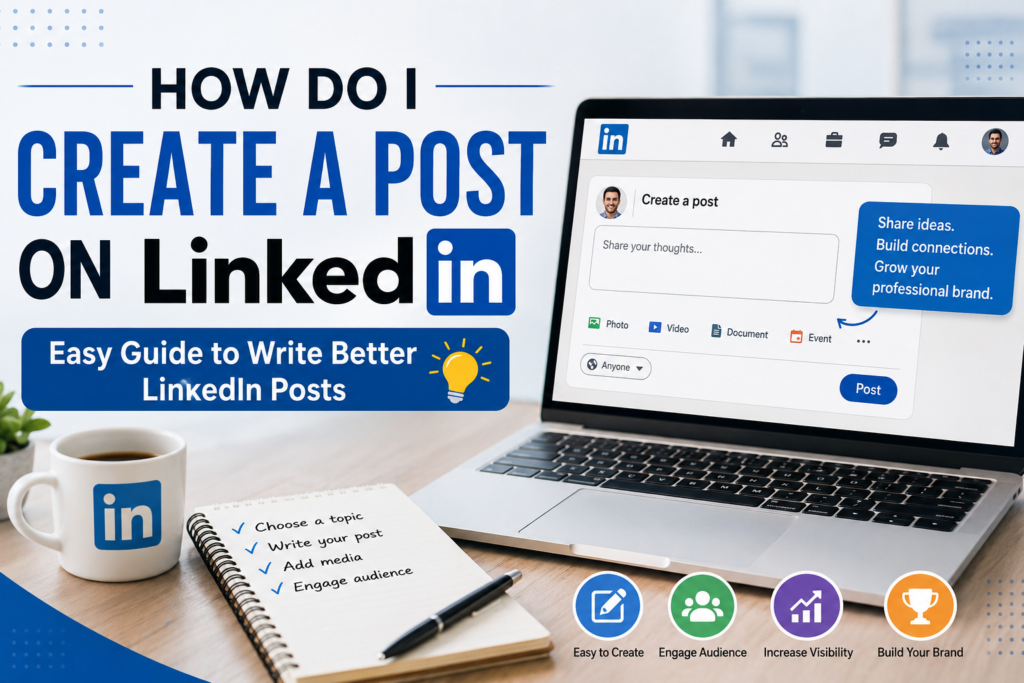
Creating a LinkedIn post is simple, but writing one that people actually read, understand, and respond to takes a little more thought. Whether you want to share a professional update, promote a business, explain an idea, or build your personal brand, LinkedIn gives you several ways to publish useful content.
If you’re wondering how do I create a post on LinkedIn, the process takes only a few steps. The harder part is choosing a clear topic, writing a strong opening, and giving readers a reason to keep reading.
This guide explains how to create a post on LinkedIn, how to structure it, what to include, common mistakes to avoid, and how AI tools can help you create better posts without replacing your own ideas and experience.
What Is a LinkedIn Post?
A LinkedIn post is content you publish on LinkedIn to share information, opinions, professional experiences, announcements, questions, or other useful updates with your network and potentially a wider audience.
A post can be as simple as a short text update or can include other formats such as:
- Images
- Videos
- Documents
- Links
- Questions
- Professional announcements
- Industry insights
- Personal experiences
The best format depends on what you are trying to communicate. A product announcement may benefit from an image, while a professional lesson may work well as a text-based post.
How Do I Create a Post on LinkedIn?

If you’re asking how to create a post in LinkedIn, start by signing in to your LinkedIn account and opening your feed.
Step 1: Start a New Post
On your LinkedIn feed, look for the option to create a post. Select it to open the publishing window. You’ll see a text area where you can begin writing your content.
Step 2: Decide What You Want to Say
Before typing, identify the main point of your post.
For example, instead of starting with:
“I wanted to share some thoughts about SEO.”
You could make the purpose more specific:
“I used to spend hours reviewing SEO reports. A simple reporting workflow changed how I approach weekly analysis.”
The second opening gives readers a reason to continue.
Step 3: Write a Strong Opening
The first few lines are important because they determine whether someone continues reading.
A useful LinkedIn opening can:
- Ask a relevant question
- Present an interesting observation
- Share a lesson
- Identify a common problem
- Challenge an assumption
- Introduce a useful result or experience
For example:
Weak opening: “Today I want to talk about content marketing.”
Stronger opening: “Publishing more content isn’t always the answer. Sometimes the bigger problem is publishing content nobody needs.”
The second version creates curiosity while clearly establishing a topic.
Step 4: Explain the Main Idea
After the opening, develop your point with short paragraphs.
Avoid trying to cover five unrelated subjects in one post. Choose one central idea and explain it clearly.
For example, if your post is about keyword research, you could explain:
- What problem you noticed
- What approach you used
- What you learned
- What other marketers can take from the experience
This gives the post a logical progression.
Step 5: Add a Useful Takeaway
A good LinkedIn post should give readers something useful. Your takeaway could be:
- A practical tip
- A lesson from experience
- A simple process
- A mistake to avoid
- A question worth considering
- A useful framework
Think about what the reader should remember after finishing your post.
Step 6: Add Relevant Media When It Helps
You don’t need an image or video for every post.
Use media when it genuinely improves the message. For example, a screenshot can help explain a workflow, while a simple graphic can make a complex concept easier to understand.
Don’t add an image simply because you think every LinkedIn post needs one.
Step 7: Review Before Publishing
Before you publish, read the post from the perspective of someone who doesn’t know your background.
Check:
- Is the main point obvious?
- Is the opening interesting?
- Are the paragraphs easy to scan?
- Have unnecessary words been removed?
- Does the post provide a useful takeaway?
- Are claims accurate?
- Does the call to action make sense?
Then publish the post when you’re satisfied with the final version.
How to Write a LinkedIn Post That Gets Attention
Knowing how to write a LinkedIn post is more useful than simply knowing where the Publish button is. A strong post usually has a clear purpose.
1. Start With One Idea
Don’t make the reader work to understand what you’re saying. Instead of writing about SEO, marketing, social media, business growth, and productivity in one post, choose one subject.
2. Make It Easy to Scan
Large blocks of text can be difficult to read in a social feed. Use:
- Short paragraphs
- Simple sentences
- Lists where appropriate
- Clear transitions
- Enough spacing
Formatting should support the message rather than distract from it.
3. Write for a Specific Reader
Think about who should find the post useful.
A post for business owners may focus on practical business decisions. A post for SEO professionals may discuss technical processes or lessons from campaigns.
Specific writing usually feels more useful than content written for everyone.
4. Avoid Empty Engagement Bait
A question at the end can encourage conversation when it is genuinely relevant.
For example:
“What SEO reporting task takes the most time in your workflow?”
is more useful than:
“What do you think? Comment YES below!”
The goal should be meaningful discussion, not artificial engagement.
How to Use a LinkedIn Post Generator
Writing from a blank page can be difficult, especially when you know what you want to say but can’t find the right structure.
A linkedin post generator can help turn an idea, topic, or short description into a structured draft.
For example, you could start with an idea such as:
“Write about three lessons I learned from improving an SEO workflow.”
An AI-powered tool can help organize that idea into an introduction, supporting points, and conclusion.
However, generated content should still be reviewed before publishing. Add your own experience, examples, opinions, and factual details so the final post accurately represents you.
Can AI Tools Help With LinkedIn Posts?
Yes. AI tools for LinkedIn can assist with brainstorming, outlining, rewriting, summarizing, and developing different versions of a professional post.
An ai linkedin post generator can be particularly useful when you have limited time or need help turning a rough idea into a readable draft.
Common uses include:
- Generating post ideas
- Creating opening hooks
- Turning notes into a draft
- Rewriting unclear sentences
- Creating alternative versions
- Adjusting tone
- Summarizing longer information
- Creating professional calls to action
An ai for linkedin workflow works best when you provide clear information instead of asking the tool to invent your entire professional experience.
AI Should Assist, Not Replace Your Experience
A useful linkedin ai tool can speed up writing, but it doesn’t know your actual experiences unless you provide them.
For example, instead of asking AI to invent a business lesson, provide your real situation:
“I tested two content workflows for three months. The second workflow reduced the amount of manual reporting I had to do.”
AI can then help structure the information into a readable post while you remain responsible for the accuracy and authenticity of the final content.
LinkedIn Post Example
Suppose you want to write about learning SEO. A simple structure could look like this:
Opening: “I thought improving SEO was mostly about finding better keywords. After working on several content projects, I learned that search intent often matters just as much.”
Main point: “Two keywords can look similar but attract completely different audiences. Before creating content, I now look at what people actually expect to find.”
Takeaway: “Keyword research tells you what people search for. Search intent helps you understand what they want.”
Closing question: “What is one SEO lesson that changed the way you create content?”
This works because it focuses on one idea and gives readers a clear takeaway.
How to Make a Post in LinkedIn More Professional
If you’re learning how to make a post in LinkedIn, focus less on making every sentence sound formal and more on making the message clear.
Professional doesn’t have to mean complicated.
Instead of:
“Leveraging strategic methodologies can facilitate the optimization of content production processes.”
Write:
“A simple content workflow can save hours of unnecessary work.”
Clear language is usually easier to understand and easier to remember.
Common LinkedIn Posting Mistakes
Even a well-written idea can lose its impact because of poor execution.
Writing Without a Clear Point If the reader cannot explain what your post was about after reading it, the message probably needs to be simplified.
Making Every Post Promotional Constantly promoting a product or service can make your content feel like advertising. Balance promotional posts with educational information, practical advice, professional experiences, and useful observations.
Using Excessive Jargon Industry terminology can be appropriate, but unnecessary jargon can make content harder to understand.
Publishing AI-Generated Text Without Editing AI-generated content may sound polished while still being generic, inaccurate, or disconnected from your real experience. Always review the draft and make it your own.
Adding Too Many Hashtags Hashtags should be relevant to the topic. Adding a long list of unrelated hashtags can make a professional post look less focused.
When Should You Use a LinkedIn Post Creator?
A linkedin post creator can be useful when you have the subject but need help with structure.
For example, you can use one when you need to:
- Turn an idea into a complete draft
- Create several approaches to the same topic
- Improve the opening of a post
- Rewrite a rough draft
- Generate professional content ideas
- Save time during content planning
A linkedin post writer can also help you experiment with different tones, such as educational, conversational, professional, or storytelling.
The important step is to review the final version before publishing.
How Rapid Tool Plus Can Help With LinkedIn Content
Rapid Tool Plus provides free online tools designed to simplify common content and SEO tasks. Its growing toolkit includes the LinkedIn Post Generator and LinkedIn Headline Generator for professional networking content, along with platform-specific generators for other channels: the YouTube Title Generator, YouTube Description Generator, YouTube Tag Generator, and YouTube Hashtag Generator for video creators; the Instagram Caption Generator, Instagram Hashtag Generator, and Instagram Bio Generator for Instagram content; the TikTok Caption Generator and TikTok Hashtag Generator; the Facebook Tag Generator and Facebook Caption Generator; the X Tag Generator and X Caption Generator; as well as SEO-focused tools like the Meta Title Generator, Meta Description Generator, Keyword Generator, and Tag Generator.
For someone creating social media and SEO content, using these tools together can make the workflow more efficient: generate a LinkedIn draft, research relevant keywords, create supporting titles or tags, improve metadata, and then review the final content manually before publishing. You can explore the full collection on the Rapid Tool Plus services page.
Final Takeaway
Learning how to create a LinkedIn post is straightforward. The bigger challenge is creating something worth reading.
Start with one clear idea. Write an opening that establishes why the topic matters, explain the idea with useful details, and finish with a practical takeaway. Keep the formatting easy to scan and avoid unnecessary promotional language.
If writing from scratch takes too long, a linkedin post generator can help you develop a first draft. AI tools are most useful when they support your ideas and experience rather than replacing them.
The strongest LinkedIn posts are not necessarily the longest ones. They are the ones that communicate a useful idea clearly enough that the right reader wants to stop, read, and think about it.
Frequently Asked Questions
How do I create a post on LinkedIn? Open LinkedIn, go to your feed, select the option to create a post, write your content, add relevant media if needed, review it, and publish it.
How to create a post on LinkedIn for business? Start with a clear business-related topic such as a customer problem, industry insight, product update, case experience, or practical lesson. Keep the message focused and provide useful information rather than making every post promotional.
How to write LinkedIn posts that people want to read? Start with a clear idea, use a strong opening, keep paragraphs short, explain the main point, and finish with a useful takeaway or relevant question.
Can AI write LinkedIn posts? AI can help create LinkedIn drafts, ideas, outlines, and alternative versions. You should review and personalize the output before publishing, especially when it contains professional experiences, statistics, or factual claims.
Is a LinkedIn post generator useful? It can be useful when you need help developing an idea or organizing a draft. The quality of the final post still depends on the information you provide and the editing you do afterward.
What should I include in a LinkedIn post? A useful LinkedIn post generally needs a clear topic, an engaging opening, supporting information, and a takeaway. Depending on the subject, you can also include an image, document, video, link, or relevant question.