Yes, you can create a LinkedIn company page to give your business an official presence on LinkedIn. A LinkedIn Page can help people discover your organization, learn about its products or services, view job opportunities, and follow company updates. LinkedIn currently allows Pages to be created for free.
If you’re wondering how to create a company page on LinkedIn, the process is straightforward, but there are a few requirements and setup decisions worth handling correctly from the beginning. This guide explains what you need, how to create the Page, what information to add, and what to do after it goes live.
What Do You Need Before Creating a LinkedIn Company Page?
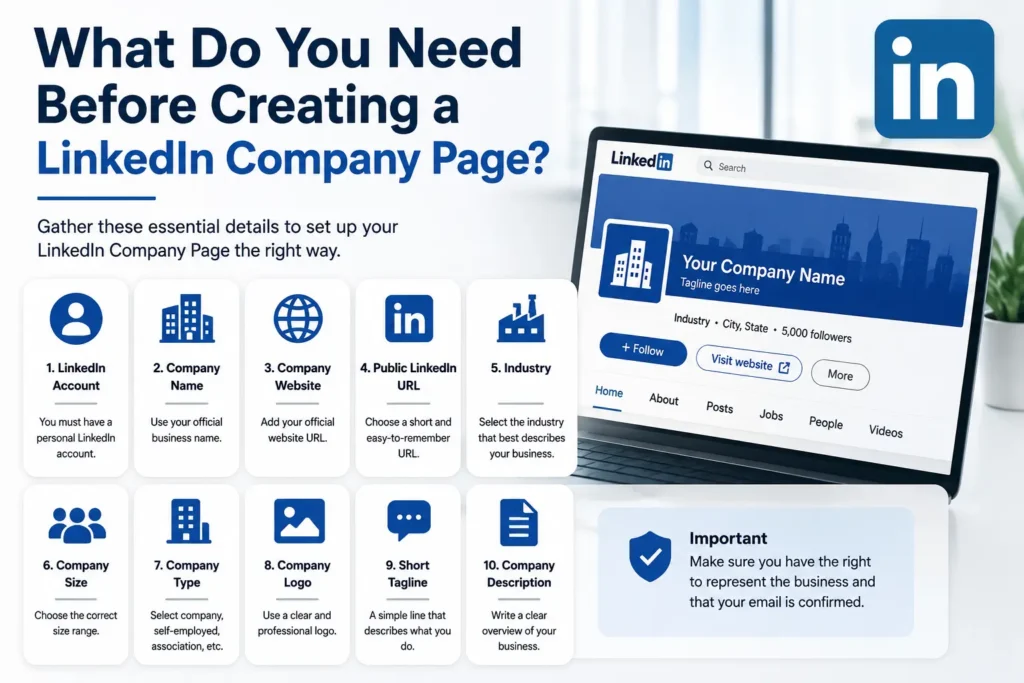
A LinkedIn company page is connected to a real person’s LinkedIn account rather than having its own separate login. LinkedIn says you need a LinkedIn account to create a Page, and your profile should use your real first and last name. Your associated email address should also be confirmed.
Before starting, gather the basic information for your business:
- Official company name
- Company website
- Public LinkedIn URL
- Industry
- Company size
- Company type
- Logo
- Short tagline
- Company description
It is also smart to search LinkedIn first to make sure your organization does not already have a Page. If a Page already exists, LinkedIn says you may be able to request admin access instead of creating another one. A company can also have a Listing Page that may be claimed.
How to Create a Company Page on LinkedIn
LinkedIn’s current desktop process is simple. Follow these steps.
1. Sign in to Your LinkedIn Account
Start by signing in to your personal LinkedIn account. You need an individual LinkedIn profile to create and manage the company’s Page. LinkedIn does not use separate Page passwords or login credentials.
A real, complete personal profile is preferable because Page administration is tied to member profiles.
2. Open the For Business Menu
From the LinkedIn homepage on desktop, find the For Business icon in the upper-right corner.
Open the menu and look for the option to create a company or LinkedIn Page. LinkedIn’s current help documentation lists Create a Company Page as the route for starting the process.
3. Choose the Correct Page Type
LinkedIn may ask you to choose the type of Page you want to create.
The available choices can include:
- Company
- Showcase Page
- Educational institution
For a normal business presence, select Company. A Showcase Page is different: it is designed as an extension of an existing LinkedIn Page for a specific brand, business unit, or initiative.
Choosing the correct type now helps you avoid creating a structure that does not match your organization.
4. Add Your Company Information
Next, complete the Page identity and company details.
Depending on the current creation interface, you’ll be asked for information such as your company name, public LinkedIn URL, website, industry, company size, company type, and optional tagline. LinkedIn also provides fields for profile details.
Use your official business information rather than stuffing keywords into the company name.
For example, if your company is called “BrightPath Digital,” use that actual business name rather than something like “BrightPath Digital Best SEO Marketing Agency USA.”
Your Page name should represent the real organization.
5. Choose Your LinkedIn Public URL
Your public LinkedIn URL is the address people can use to find your Page.
Try to make it:
- Short
- Easy to remember
- Close to your real company name
- Consistent with your website branding
Avoid unnecessary numbers, complicated abbreviations, or keyword-heavy variations that do not reflect the actual company.
6. Add Your Logo and Tagline
Your logo is one of the first visual elements visitors will see, so use a clear version of your company’s actual logo.
LinkedIn’s Page creation resources also recommend adding a tagline and completing your Page profile. A good tagline should explain what your company does in a few words rather than trying to include every service you offer. (LinkedIn Business Solutions)
For example:
Weak:
“Best Digital Marketing SEO Company Services Agency”
Better:
“Helping growing businesses build stronger digital visibility”
The second version communicates the value without sounding like keyword stuffing.
7. Confirm You Have the Right to Represent the Business
LinkedIn requires you to confirm that you have the right to act on behalf of the company or organization when creating the Page. After completing the required fields, you’ll need to select the verification/confirmation box before creating the Page.
Only make this confirmation when you actually have the authority to create the organization’s Page.
8. Click Create Page
Once the required information is complete, select Create page.
After creation, the person who creates the Page becomes its super admin. LinkedIn allows the super admin to assign additional administrators and manage the Page.
If LinkedIn displays an error, review the information you’ve entered and make sure the requirements associated with your account are satisfied.
What Should You Add to Your LinkedIn Company Page?
Creating the Page is only the beginning. An incomplete Page can make a legitimate company look inactive or unfinished.
Start by completing the important sections of your company profile.
Company Description
Write a clear description that tells visitors:
- What your company does
- Who you serve
- What products or services you provide
- What makes the organization relevant
- Where appropriate, what markets or industries you work in
Keep the description focused on the reader rather than filling it with repeated versions of your primary keyword.
Website
Add your official website so visitors can move from LinkedIn to your main online presence.
Make sure the website belongs to the same organization represented by the Page.
Industry and Company Size
Choose the categories that accurately describe your business.
These fields help visitors understand what type of organization they are looking at and make your Page more complete.
Cover Image
Use a professional cover image that supports your brand. You can include a simple value proposition, product visual, service category, or brand message, provided the design remains readable.
Location and Other Business Details
Complete relevant company details wherever available.
The more useful information a legitimate visitor can find without leaving LinkedIn, the easier it is for them to understand the business.
What Is the Difference Between a LinkedIn Profile and a LinkedIn Company Page?
This distinction is important.
A LinkedIn profile represents an individual person. A LinkedIn Page represents an organization, company, educational institution, or related entity.
You should not create a personal profile using your company’s name. LinkedIn’s Page administration model is built around real member profiles managing organizational Pages.
For example:
Personal profile:
Jane Smith — Marketing Director
Company Page:
ABC Digital Solutions
Jane can manage ABC Digital Solutions’ Page without turning the company into a personal LinkedIn account.
How Do You Add Other People as LinkedIn Page Admins?
A company should not depend on one person’s account forever.
LinkedIn allows Page super admins to add other admins. The current admin management process is found in the Page’s super admin view under Settings and Manage admins. The person you want to add needs to meet LinkedIn’s eligibility requirements, such as being a connection and following the Page.
LinkedIn also has different administrative roles. A super admin has broader control, while content admins can manage Page content without having every administrative permission.
For a small business, it can be useful to have at least one additional trusted administrator so the Page is not dependent on one person.
What Should You Post After Creating Your LinkedIn Company Page?
Once your Page is complete, start publishing useful company-related content instead of leaving it empty.
Good starting topics can include:
- Company announcements
- Product or service updates
- Helpful industry insights
- Educational posts
- Customer-focused information
- New team members
- Company milestones
- Job opportunities
- Original articles and resources
LinkedIn allows super and content admins to publish text, images, videos, and documents from the Page. Page administrators can also access post performance information such as impressions, reactions, comments, click-through rate, and engagement-related metrics.
Consistency matters more than publishing random promotional updates every day. Build a content style that your target audience would actually find useful.
How Can You Make a New LinkedIn Company Page Look More Professional?
A new Page does not need hundreds of posts immediately. It needs a clear identity.
Start with the basics:
Use consistent branding: Your logo, colors, website, and company description should make the Page recognizable.
Explain your value: A visitor should quickly understand what the company does.
Create useful content: Mix company news with information your audience can learn from.
Connect employee profiles: Where appropriate, employees can accurately list their employment and associate themselves with the company Page.
Keep information updated: Review your website, company description, location, branding, and other details periodically.
Monitor Page analytics: Use available performance data to understand which types of posts attract attention.
Can You Create a LinkedIn Company Page From Your Phone?
LinkedIn’s current help documentation says Page creation can be performed using the desktop version of LinkedIn or the LinkedIn mobile app on iOS. LinkedIn currently states that creating a Page is not supported on Android mobile devices.
Because LinkedIn can change its interface and feature availability, the menu you see may differ slightly from older tutorials.
For the smoothest setup, desktop LinkedIn is a practical option.
What If Your Company Already Has a LinkedIn Page?
Do not automatically create a duplicate Page.
Search LinkedIn using your company’s name and variations of the business name. If you discover an existing Page, LinkedIn provides a process for requesting admin access. If the organization appears as a Listing Page, it may also be possible to claim it.
Avoid creating duplicate company Pages simply because you cannot immediately find the administrator.
Duplicate Pages can create confusion for employees, customers, prospects, and anyone searching for the official company.
What Should You Do After the Page Goes Live?
Think of the Page as a long-term business asset rather than a one-time profile setup.
A practical launch sequence is:
- Complete the company information.
- Add your logo and cover image.
- Write a useful company description.
- Add your website and other important details.
- Review the public Page before promoting it.
- Publish your first useful post.
- Invite relevant people to follow the Page where appropriate.
- Assign trusted administrators.
- Monitor content performance.
- Keep the Page active and updated.
LinkedIn also provides Page follower invitation features, although invitation availability and limits can vary and LinkedIn says these are being changed over time.
Once your company Page is established, your personal LinkedIn profile can also become an important part of the overall brand presence. A clear professional headline helps visitors understand your role and connection to the business. For this, you can use the LinkedIn headline generator from Rapid Tool Plus to generate headline ideas based on your professional position and goals. The Rapid LinkedIn headline generator can be useful when you want to improve your personal profile alongside your new company presence. You can also explore the LinkedIn post generator when you need ideas for creating company-related LinkedIn content.
Final Takeaway
Creating a LinkedIn company page is relatively simple, but the quality of the Page depends on what you do after clicking Create.
Start with an accurate company identity, complete the important profile information, use professional branding, and avoid duplicate Pages. Then build the Page with useful content that gives potential customers, employees, and professional connections a reason to follow it.
Most importantly, remember that your company Page and personal LinkedIn profile work together. Your business Page represents the organization, while your personal profile helps people understand the people behind it.
FAQs
Is it free to create a LinkedIn company page?
Yes. LinkedIn says you can create a LinkedIn Page for free. Some additional Page-related features may have separate availability or requirements.
Do I need a personal LinkedIn account to create a company page?
Yes. LinkedIn requires an individual LinkedIn account to create and manage a Page. Page administration is connected to personal member profiles rather than a separate Page login.
Can I create a LinkedIn company page on Android?
LinkedIn’s current Help documentation says Page creation is not supported on Android mobile devices. It is supported through desktop LinkedIn and the LinkedIn iOS app.
What happens after I create a LinkedIn Page?
The person who creates the Page becomes its super admin and can manage the Page and assign other administrators.
Can I add employees or other people as Page admins?
Yes. A super admin can add other eligible LinkedIn members as Page administrators and assign appropriate admin roles.
What if my company already has a LinkedIn Page?
Check whether the existing Page is already associated with your organization and request admin access rather than creating a duplicate. LinkedIn also provides a process for claiming certain Listing Pages.