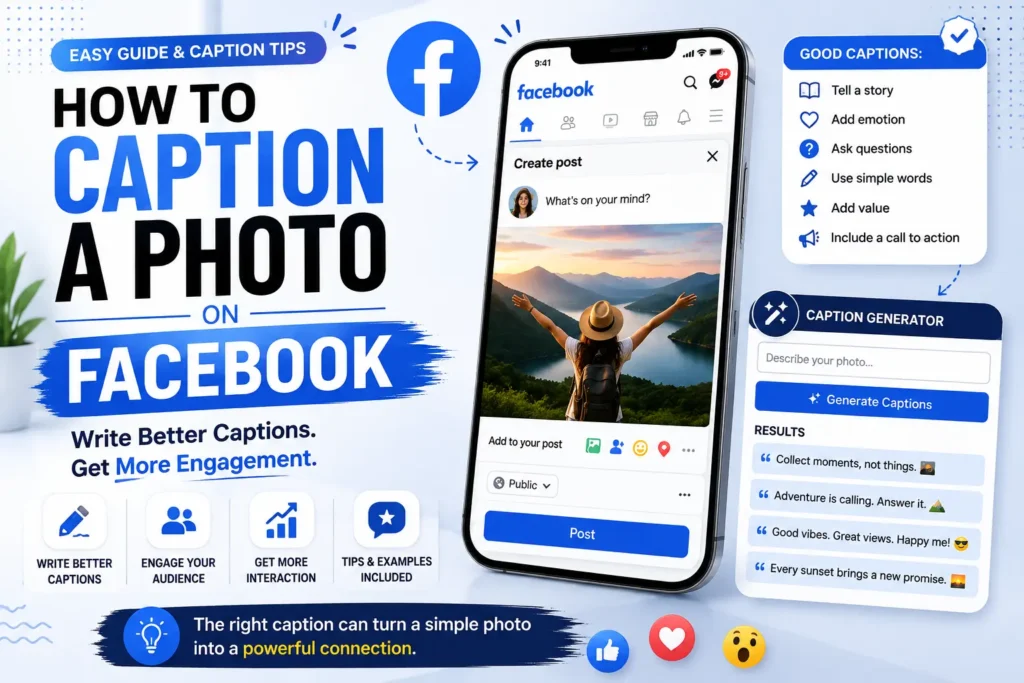
Adding a photo to Facebook is easy. Writing a caption that actually explains the image, adds personality, or encourages people to respond takes a little more thought.
A Facebook photo caption is the text you publish with your image. It can describe what is happening, share a story, provide context, promote something, ask a question, or simply express how you feel. If you regularly struggle to find the right words, a Facebook caption generator can give you a starting draft that you can edit before publishing.
This guide explains how to caption an image, how to add a caption to a Facebook photo, how to write better captions, and what to check when captions are missing from Facebook Reels.
What Is a Facebook Photo Caption?
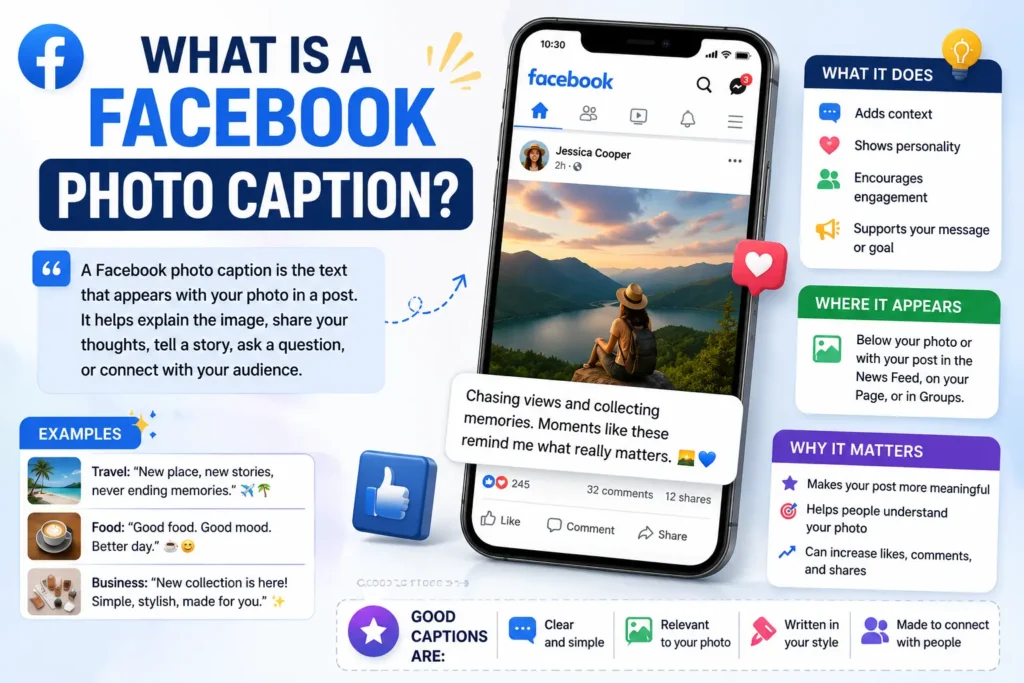
A Facebook photo caption is the written message that accompanies a photo or image in a Facebook post.
For example, imagine you upload a picture from a weekend trip. Your caption could simply say:
- Weekend in Chicago.
Or it could give the photo more context:
- A perfect Saturday exploring downtown Chicago, finding great coffee, and ending the day by the river.
Both are valid captions, but the second gives people more information and creates a stronger connection with the image.
It is also important to distinguish a post caption from text placed directly on a photo. A Facebook post caption appears with your post, while text added to the image itself is part of the visual and normally requires an image-editing tool.
How Do I Put a Caption on a Photo on Facebook?
The exact Facebook interface can change over time, but the basic process is straightforward.
On a Facebook post
- Open Facebook and start creating a new post.
- Choose the option to add a photo or video.
- Select the image you want to publish.
- Add your written message in the post composer.
- Review the audience and other post settings.
- Publish the post.
The important part is that your caption should relate directly to the image. If the photo is a product, mention the product. If it is a personal moment, provide useful context or a short thought. If it is a business post, explain what people should know or do next.
Facebook’s publishing tools also allow Page owners to add details when posting visual content, while video-specific captions are handled separately from ordinary photo-post text.
How to Caption an Image: Start With the Purpose
Before writing a caption, ask one simple question:
Why am I posting this image?
Your answer usually determines the best caption style.
Personal photo
Share a feeling, moment, memory, or observation.
- Some places are worth the early morning drive.
Travel photo
Mention the location or experience.
- First morning in Seattle, and the view was worth every step.
Business photo
Explain the product, service, offer, or update.
- Our new spring collection is now available. Which color would you choose?
Food photo
Describe what makes the meal interesting.
- Fresh pasta, homemade sauce, and exactly the kind of dinner Friday needed.
Event photo
Give people enough context to understand what they are seeing.
- A great afternoon celebrating our team and everything we’ve accomplished this year.
A useful caption does not have to be long. It just needs to add something the image cannot communicate by itself.
How to Make a Caption on a Picture That Gets Attention
Good captions usually have a clear purpose rather than trying to say everything at once.
1. Lead with the most important idea
Don’t make readers work to discover your point.
Instead of:
- Had a really nice day today and took some pictures and wanted to share one of them…
Try:
- One of my favorite moments from this weekend.
The second version is cleaner and more natural.
2. Add a specific detail
- Specific details make ordinary captions more interesting.
Compare:
- Great day with friends!
with:
- Six hours, three coffee stops, and one unforgettable road trip.
The second caption creates a clearer picture.
3. Match the tone to the photo
A family celebration may call for a warm caption. A product launch may need a more direct caption. A funny photo may benefit from humor.
Your caption should feel like it belongs with the image.
4. Give people a reason to respond
A question can turn a simple photo into a conversation.
For example:
- Beach day or mountain getaway—which one would you choose?
Don’t add a question just because you think every post needs one. Use it when a genuine response would make sense.
5. Keep unnecessary words out
A caption should not repeat information that is already obvious from the image.
If the picture clearly shows a sunset, writing “This is a beautiful sunset” is not especially useful. Add perspective instead:
- The kind of sunset that makes you stop checking your phone.
How to Make Captions on Photos More Easily
Writing a new caption every time you post can become repetitive, especially for business pages and creators.
A simple workflow can make the process faster:
Describe the photo → decide the purpose → choose a tone → write the first sentence → add one useful detail → edit.
For example:
Photo: New coffee shop menu
Purpose: Promotion
Tone: Friendly
Caption:
- New menu, same neighborhood favorite. Which drink are you trying first?
This approach gives you a repeatable structure without making every post sound identical.
What Is a Facebook Caption Generator?
A Facebook caption generator is a writing tool that helps turn a topic or description into a draft social media caption.
Instead of staring at an empty caption box, you can enter something such as:
“New bakery opening this Saturday”
and use a generator to develop several possible captions.
This is particularly useful for:
- Facebook business Pages
- Small businesses
- Creators
- Social media managers
- Product announcements
- Lifestyle posts
- Event promotions
- Photo updates
A free Facebook caption generator can be useful when you only need help getting started. An AI Facebook caption generator can also help produce different tones or formats based on the information you provide.
The generated result should be treated as a draft. Add your actual details, remove anything inaccurate, and make the final version sound like your own voice.
How to Use a Facebook Caption Generator
The process can be simple.
Step 1: Describe the image
Be specific.
Instead of:
- Restaurant
try:
- New outdoor patio at our Italian restaurant, opening Friday evening.
The second input gives the tool much more useful context.
Step 2: Choose the purpose
Decide whether the caption should be:
- Casual
- Promotional
- Inspirational
- Informational
- Question-based
Step 3: Generate a few ideas
Look for the version that communicates your message most clearly.
Step 4: Personalize it
Replace generic phrases with real details such as a product name, location, date, price, experience, or personal observation.
Step 5: Check before publishing
Make sure the caption matches the photo and does not contain exaggerated or unsupported claims.
Facebook Caption Examples for Different Photos
Here are a few original examples you can adapt.
Selfie
- No special plans. Just a good day and a better mood.
Family Photo
The moments that look ordinary in the photo are often the ones we remember most.
Vacation Photo
New city, new streets, and a lot more coffee than planned.
Product Photo
Designed for everyday use, built to make the little things easier.
Small Business Post
Fresh batches are ready for the weekend. Stop by before your favorite sells out.
Engagement Post
We finally settled the debate. Now it’s your turn: coffee or tea?
How Do I Put a Caption on a Photo vs. Add Text to the Photo?
These are two different things, and the distinction causes confusion.
Caption under the photo
This is the text you write as part of the Facebook post. It appears alongside or below the image depending on the interface and device.
Text directly on the image
This means words are physically placed over the photograph. For example:
“Grand Opening – Saturday, 10 AM”
That text becomes part of the image itself. To create it, you generally need an image editor or design application rather than a normal Facebook post caption.
So when someone searches how do I put a caption on a photo, they may be asking about either of these methods. Decide which result you want before choosing a tool.
Common Facebook Caption Mistakes
Writing something unrelated to the image
The caption should provide context rather than confuse the reader.
Making every caption promotional
Not every post needs to sell something. Mixing useful, personal, educational, and promotional content can make a page feel more natural.
Using too many hashtags
Hashtags can be useful in some contexts, but filling a Facebook caption with a large block of unrelated hashtags can make the post look cluttered.
Copying generic AI text
AI tools can speed up drafting, but publishing every generated sentence unchanged can make your content feel repetitive. Add specific information and your own perspective.
Making exaggerated claims
Avoid statements such as “This will definitely go viral” or “Everyone will love this.” No caption can guarantee a particular audience response.
Why Do Captions Disappear on Facebook Reels?
The word caption can mean two different things on Facebook Reels.
It can refer to:
- The text accompanying the Reel as the post description.
- Video captions that display spoken dialogue as on-screen text.
These are not the same feature.
Facebook provides caption tools for videos, including options for adding captions to uploaded videos and Pages. It also supports caption display settings for viewers when captions are available.
If captions appear to disappear from a Reel, check the following:
Check whether you mean video captions
If you are referring to spoken-word subtitles, check whether captions are available for that video and whether caption display is enabled. Facebook notes that not all videos have captions.
Check the Reel’s caption settings
Facebook’s current video tools include caption and translation controls, and the wording or location of these controls can vary by device and feature version.
Check whether captions were actually added
For uploaded videos, Facebook supports adding captions through its video editing tools, including uploaded .srt files. Pages can also use auto-generated captions where available.
Update the app and try again
If a feature behaves unexpectedly, make sure Facebook is updated and test the Reel again. Interface issues can also vary between mobile devices and desktop.
For more persistent problems, use Facebook’s official troubleshooting and help resources rather than assuming that the caption has been permanently deleted. Facebook maintains a dedicated troubleshooting section for video and caption issues.
Rapid Tool Plus for Facebook and Social Media Content
Rapid Tool Plus provides a collection of online tools for creators, marketers, publishers, and everyday social media users. Its available services include Free Meta Title Generator, Free Meta Description Generator, Free Keyword Generator, Free Tag Generator, Free YouTube Title Generator, Free YouTube Description Generator, Free YouTube Hashtag Generator, Free YouTube Tag Generator, Free Instagram Hashtag Generator, Free Instagram Caption Generator, Free Instagram Bio Generator, Free TikTok Hashtag Generator, Free TikTok Caption Generator, Free Facebook Tag Generator, Free Facebook Caption Generator, Free X Tag Generator, Free X Caption Generator, Free LinkedIn Headline Generator, Free LinkedIn Post Generator, Free Pinterest Tag Generator, Free Pinterest Description Generator, Free Calculator, Free BMI Calculator, Free Loan Calculator.
For readers specifically trying to write better Facebook posts, the Facebook Caption Generator lets you describe what you’re posting, choose a tone, and generate a ready-to-edit caption. The tool currently offers casual, promotional, question, and inspirational caption styles, with the emphasis on editing the generated draft using your own real details before publishing.
Practical Tips for Better Facebook Photo Captions
Use these simple checks before publishing:
- Make the first sentence clear.
- Mention a detail that is not obvious from the image.
- Match the tone to your audience.
- Keep promotional language proportional to the purpose of the post.
- Use a question only when you genuinely want responses.
- Edit generated captions so they sound natural.
- Double-check names, dates, prices, locations, and other factual details.
- Make sure the caption matches the image.
The goal is not to make every caption clever. The goal is to make every caption useful, appropriate, and easy to understand.
Final Takeaway
A strong Facebook photo caption does more than describe an image. It adds context, personality, information, or a reason for people to respond. When writing your own caption, start with one clear idea, add a specific detail, and keep the language natural. For businesses and creators who publish frequently, a Facebook caption generator can reduce the time spent staring at a blank text box and provide several starting points. The best result still comes from combining the tool’s draft with your own details, experience, and voice.
Frequently Asked Questions
How do I put a caption on a photo on Facebook?
Create a Facebook post, add your photo, and type your message in the post composer before publishing. The exact interface can vary by device and Facebook version.
How to make a caption on a picture?
Start by identifying the purpose of the picture. Then write one clear sentence, add a specific detail, and finish with a question or call to action when appropriate.
How to make captions on photos for a business page?
Mention the product, service, location, offer, or customer benefit shown in the photo. Keep the wording natural and make the next action clear when necessary.
Can a Facebook caption generator write captions automatically?
A caption generator can create a draft based on your topic and selected style. You should still review and personalize the result before posting. Rapid Tool Plus, for example, generates drafts around the topic and selected tone rather than presenting the output as a replacement for your own editing.
Is there a free Facebook caption generator?
Yes. The Rapid Tool Plus Facebook Caption Generator is currently presented as free to use without an account or credit card.
Why do captions disappear on Facebook Reels?
First determine whether you mean the Reel’s post description or on-screen video captions. Video captions depend on caption availability and viewer/video settings, and Facebook notes that not all videos have captions.